How to Install SSL Certificate on Microsoft IIS 8 / 8.5?
- Sunday, 17th September, 2023
- 14:43pm
Install SSL certificate on Microsoft IIS 8 / 8.5
- Open SSL certificate contained in Zip file and save it on desktop.
- Go to Start >> Administrative tools >> IIS manager.
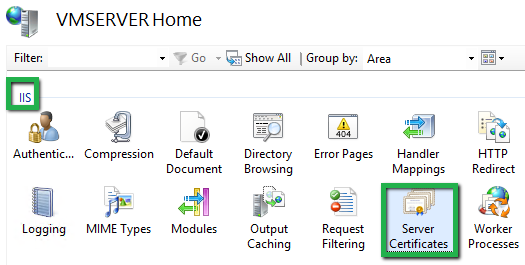
- Open IIS manager and on the left side, select hostname under Connection tab. Now click on server certificates from the center menu.
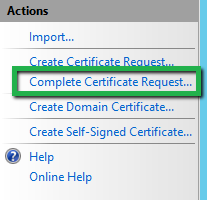
- On the right side Action menu, open Complete Request Certificate wizard.
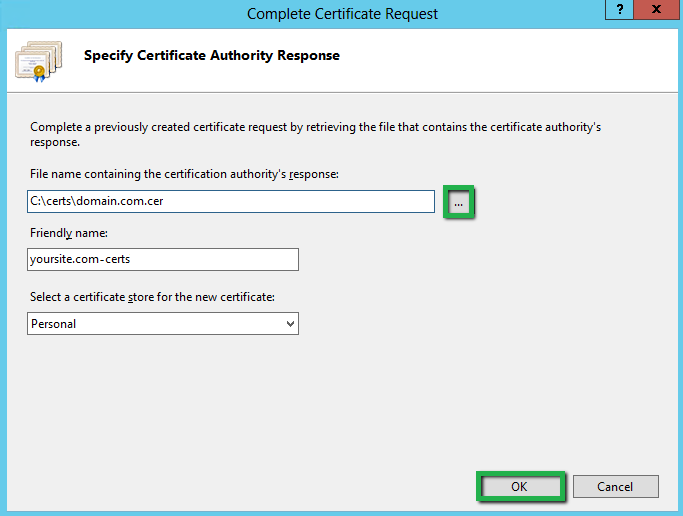
- You will see a dialogue box named Specify Certificate Authority Response. Now, click on three dot (…) button to browse .cer file. Enter any friendly name in Friendly name box. Select Personal to store certificate in next drop down box. Click OK button.
- Now, your certificate is installed. Now, you have to assign the certificate to the default website.
Assign SSL certificate using IIS 8 / 8.5
- Open IIS manager, under Connection tab, browse server name >> Sites >> Default website.
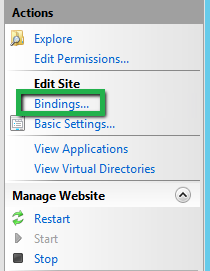
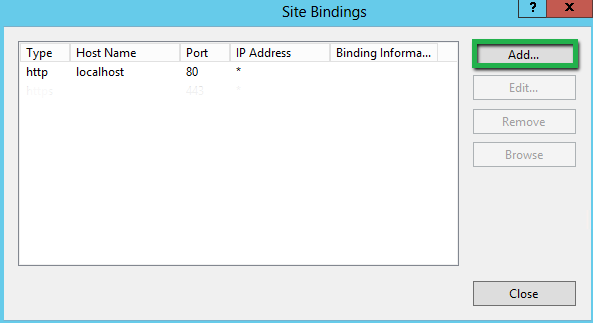
- On right side in Action tab, Browse Edit Site >> Bindings option.
- Now Click Add button in appeared dialogue box.
- You will see Add Site Bindings box where you have to enter below details.
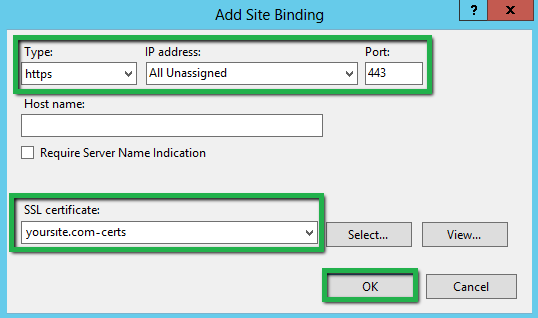
- Click OK button
- Your Certificate installation is completed.
